
By The KTech team · Published 14 November 2026
Data recovery in Kingsbridge starts with one rule: stop using the device that holds the files and get expert advice before trying to fix it yourself. Lost files are often still on a drive after a deletion, a crash or a formatting mistake, but further writes or repeated repair attempts can overwrite them or damage a drive that is already struggling. Our data recovery and backup service helps homes and businesses across the South Hams, with the work carried out at our East Charleton workshop.
This guide explains the first steps to take when files disappear, the signs of a failing drive, and why deleted files and failed drives need different approaches. It also covers why downloadable recovery software can make things worse, how to handle phones, USB sticks and SD cards, and how to set up backups once your files are safe. If you are unsure where to start, our contact page is the quickest way to describe the problem.
What should I do first when files go missing?
Stop using the device straight away. Every new file written to a drive can overwrite the data you are trying to get back, so avoid saving documents, installing software or downloading updates onto it. If the computer is still working, switch it off and leave it alone, and write down what happened just before the files disappeared.
Then think about where the files were kept. Deleted items may still sit in the Recycle Bin or Trash, and a recent backup or a cloud sync can hold an earlier copy. If none of those options work, call us before attempting anything more technical, because the right next step depends on what the device is and what has happened to it.
- Stop saving, installing or updating anything on the device.
- Check the Recycle Bin, the Trash or a previous version of the folder.
- Look for an existing backup on an external drive or in cloud storage.
- Write down the time and the actions taken just before the loss.
How do I know if my drive is failing?
A failing hard drive often gives warning signs before it stops working altogether. Clicking, grinding or whirring sounds, files that take ages to open and error messages during copying are the most common ones. Slow start-ups and freezes that come and go can also point to a drive that is struggling to read its data.
Solid-state drives do not click, so their warnings look different. They may disconnect unexpectedly, report read errors or stop being recognised by the computer altogether. If you notice any of these signs, avoid running long copy sessions, because forcing a failing drive to work hard can finish it off, and speak to us first.
What is the difference between deleted files and a failed drive?
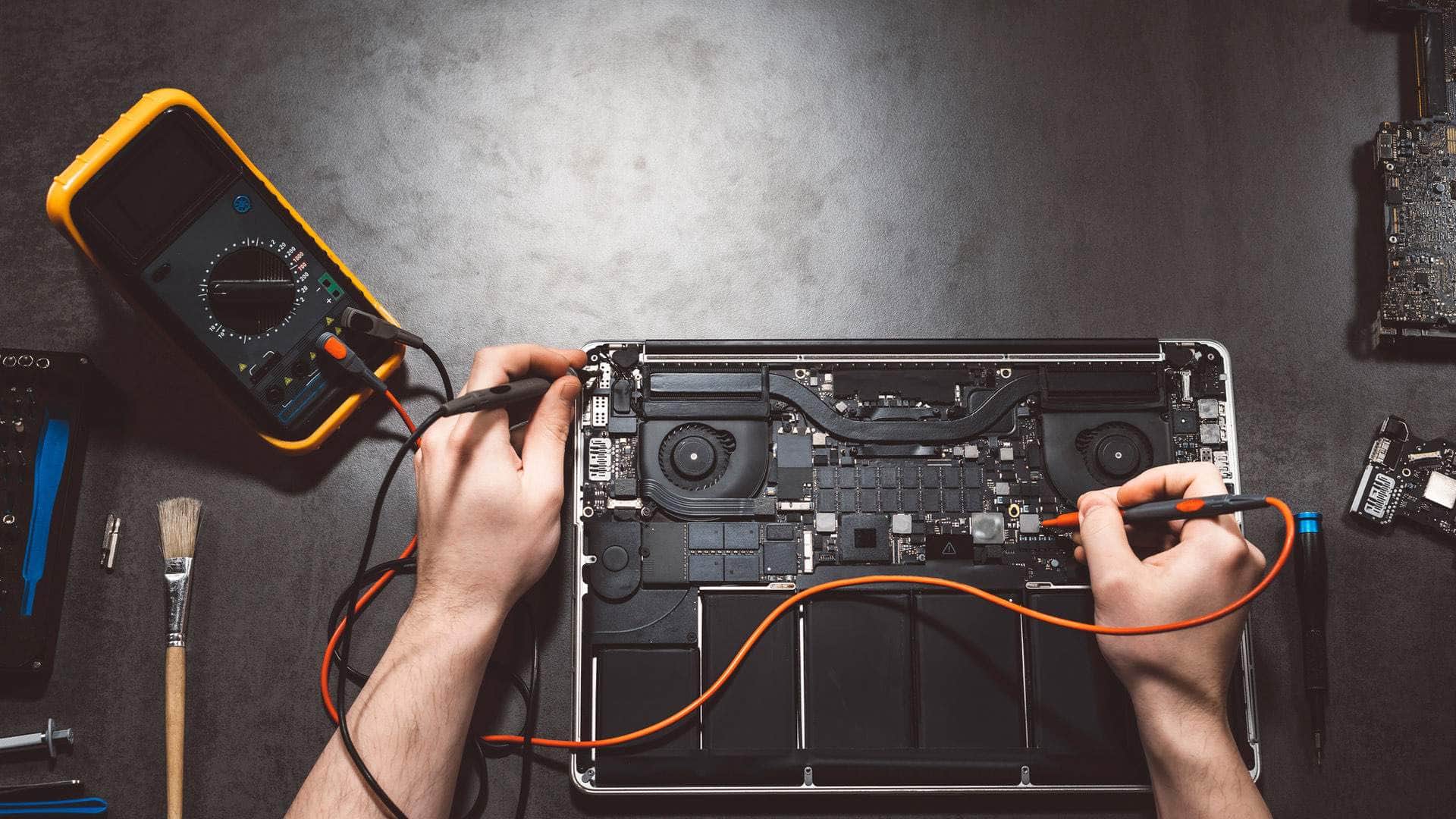
A deleted file is usually a logical problem: the computer has marked the space as available, but the data may still be there until something overwrites it. A failed drive is a physical or electronic fault, where the drive cannot be read reliably at all. The two situations need very different handling, and the wrong approach can turn one into the other.
Emptying the Bin, reformatting a drive or reinstalling Windows can all overwrite deleted files, which is why a short pause before acting matters so much. A failed drive, meanwhile, needs careful handling in a controlled environment, because repeated power cycles and rough handling can cause further damage. Telling us which situation you think you are in helps us plan the next step.
Why can DIY recovery software make things worse?
Recovery software can be useful on a healthy drive where files were simply removed by mistake. On a drive with physical damage, though, it can keep reading the same faulty areas over and over, which adds stress and may cause more loss. Scans can also write temporary files to the very drive you are trying to save.
Some programs promise quick results and then ask for payment before they show what can be saved, while others miss the most important folders entirely. Installing the software onto the drive you are trying to recover from is a common and avoidable mistake. Before running any tool, check that it will not write to the damaged device and that you have a separate drive to recover onto.
- Installing software onto a failing drive can overwrite the data you want back.
- Repeated scans put strain on a drive that is already unwell.
- Results can look complete while key folders remain unreadable.
- Some tools ask for payment before they show what can actually be saved.
What about phones, USB sticks and SD cards?
Phones, USB sticks and SD cards hold more of our lives than most people realise, from photos and messages to work files and camera footage. Their storage behaves differently from a laptop drive, and a card removed without being safely ejected can be harmed. Keep the device unchanged, and do not reformat it just because it shows an error message.
On a phone, check whether photos and messages are already synced to a cloud account before doing anything else, because the copy you need may already exist. A USB stick or SD card that suddenly shows as empty or unreadable can sometimes be recovered, but it should be handled gently and not plugged into several machines in turn. Bring it to us in a labelled bag with a note of what it held.
How do I set up backups once my files are safe?
Once your files are recovered, the aim is to make sure the same loss cannot happen again. A simple approach is to keep three copies of important data: the working copy, a second copy on a separate drive and a third copy kept somewhere else, such as cloud storage. Plain, regular backups matter far more than any single clever tool.
Choose a routine that runs without you having to remember it, and test that you can actually restore a file from the backup. Keep the external drive unplugged or stored separately when it is not in use, so that a fire, a flood or a power surge cannot take the original and the backup together. If your files include booking records and guest details, our holiday let backup guide explains a routine that suits a short-stay property.
- Working copy: on the computer or phone you use every day.
- Second copy: on an external drive kept apart from the machine.
- Third copy: in cloud storage or at a separate location.
- Test restore: an occasional check that a file really comes back.